
Help · Content
Design an email with your assistant
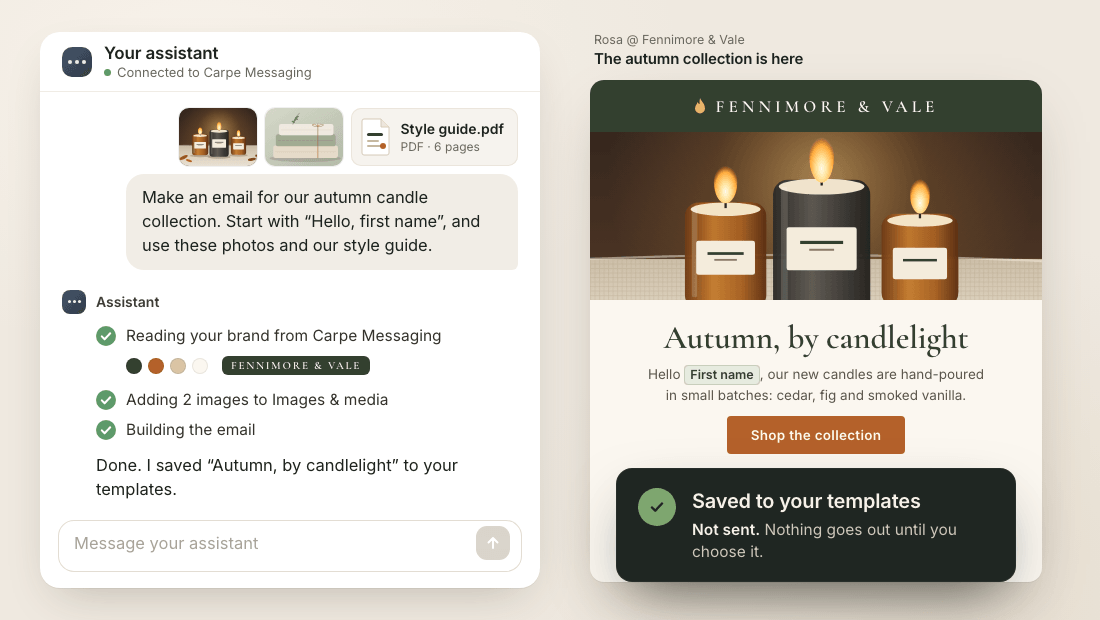
Your MCP AI assistant can design an email for you. Tell it what the email is about, hand it your images and your style guide, and it builds the email out of the same blocks you use in the editor, checks how it looks, and saves it as a template in your store. Then you open it, change what you want, and decide when it goes out — your assistant can design, never send.
What it is for
It is for the first draft — the part of an email that takes the longest. Your assistant does the layout, the words and the colors from your own notes, and you start from something nearly finished instead of from a blank page. Every decision after that is still yours.
Because it builds from the editor's own blocks — headings, text, images, buttons, lines and the rest — what it makes is an ordinary template. It opens in the editor block by block, and you change it the way you change one you built yourself.
To connect an assistant first, the Connect your MCP AI assistant page has the steps.
What to give your assistant
Three things make the difference: the idea, your images and your style guide. The more of each you give it, the less you change afterwards. You do not need to tell it your brand colors if you have saved them on Settings → Store — it reads them there on its own.
- The idea. What the email is for, who it is for, and the one thing you want a reader to do — shop a new collection, read a story, come back to the store.
- Your images. Images already in your Images & media, or the web address of an image on your own website or your Shopify store.
- Your style guide. Paste it in, or describe it: your fonts, your tone of voice, how long your emails usually run, anything you never say.
A short ask is enough to start. For example:
Design an email for Fennimore & Vale announcing our three new autumn candles — cedar and clove, smoked pear, and woodsmoke amber. Use our brand from Settings → Store, the candle images in our Images & media, and the style guide below. Greet people by first name, with “friend” when we do not know it. One button, to the autumn collection. Save it as a template called Autumn candles.
Then ask for changes the way you would ask a person: a shorter headline, a second button, warmer words. Ask it to save them to the same template, so you do not end up with three versions side by side.
Your brand, read for you
If you saved your brand on Settings → Store, your assistant reads it on its own: your primary and secondary colors, your link style, your logo, your logo for dark backgrounds and how wide your logo should be. If you have not saved a brand there, tell your assistant your colors instead.
To save your brand once, for your assistant and for your own new templates, open Settings → Store and fill in the brand card. Your assistant reads it whether or not New templates use your brand settings is enabled. It only reads it — your assistant cannot change your brand, or any other setting.
A logo with no description cannot go in an email yet, so your assistant is told it cannot use it. Describe it in Images & media and your assistant can.
Your images
An email can only show images from your own Images & media. Your assistant can look through the images already there, and it can add an image from a web address — one at a time, from a public https:// address, as a JPEG, PNG, WebP or GIF. An image it adds shows up in Images & media like one you uploaded.
Your assistant is asked to say what each image shows as it adds it, because that description is what a reader who cannot see the image hears, and an image with no description cannot go in an email until someone writes one.
The easiest way is often to upload your images to Content → Images & media yourself, with their descriptions, and then tell your assistant to use them. An image served straight from another website is never shown in an email — it is removed when the template is saved, and the template says so.
Where the template lands
The finished email is saved as a template on Content → Templates, beside your own, and the editor opens it like any other. It mails nobody, belongs to no campaign and no automation, and is never sent until a person on your team chooses it.
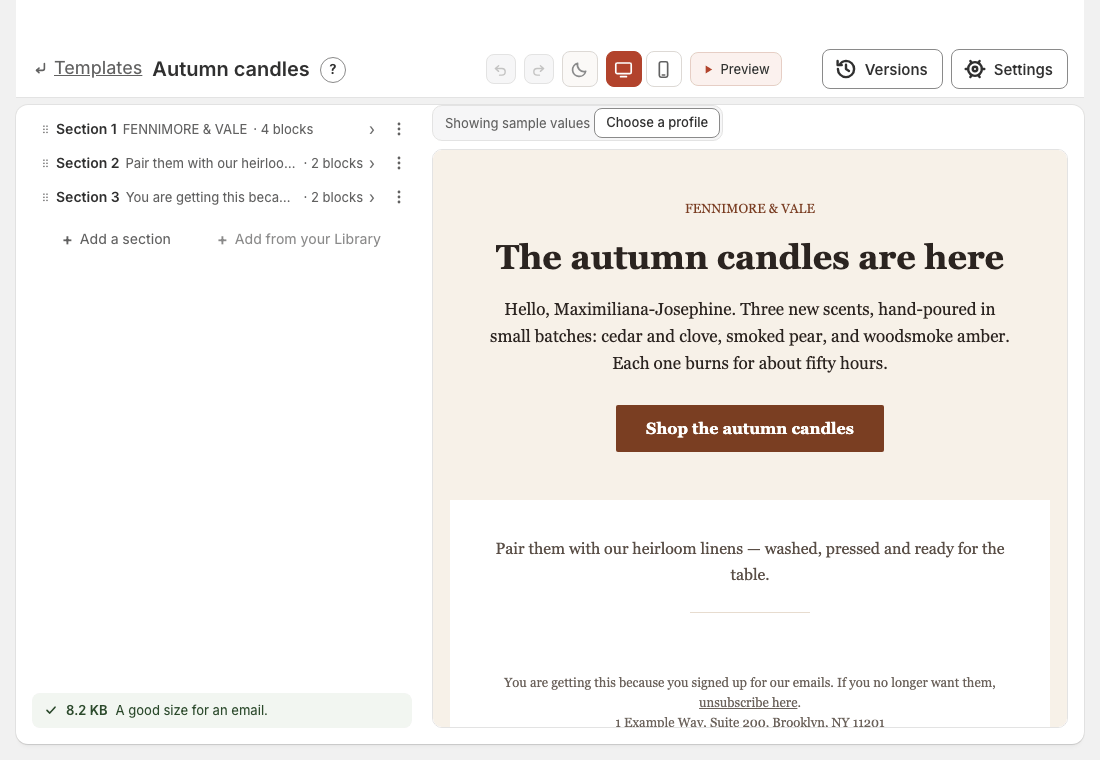
Open Content → Templates to find it, then change anything you like. To send it, choose it for a campaign or for a message in an automation, the same way you would choose a template you built yourself.
Your assistant can also look at a saved template the way it will arrive, with a made-up name in place of a real one. It never sees a real person's details this way, and looking sends nothing. Each time it saves, anything the editor would flag — a missing unsubscribe link, a subject line it cannot fill in — is told to your assistant too, so it can fix it before you open the template.
Changing it afterwards
You can go on asking your assistant to change a template after it is saved, and you can change it yourself in the editor. Whoever saves last does not win by accident: if you changed the template since your assistant last read it, its save is refused rather than written over your work, and it has to read your version first.
Your assistant can also work on the email inside a draft campaign. Once a campaign is no longer a draft, its email is refused to your assistant.
What it never does
Your assistant cannot send an email, send a test, schedule or start a campaign, enable a message in an automation, delete or archive a template, or change anybody's consent. Those are not permissions waiting to be given — they are not there for any assistant, whoever connected it.
That is what lets you hand it the first draft without worry. Nothing it designs reaches anybody until you read it, choose it and send it yourself. Your back-in-stock emails are left alone too: your assistant cannot change them at all.
Who can use it
A marketer, a manager or an owner can design emails with their assistant. A viewer's assistant can read your templates and answer questions about them, but cannot save one. The app records that your assistant saved a template, and which team member it was working for.